Thursday, August 8, 2013

Validating the Email address in DOJO

Validating the Email address in DOJO


<input  data-dojo-type="dijit.form.ValidationTextBox"regExpGen="dojox.validate.regexp.emailAddress" required="true" name="email"  id="email" missingMessage="Enter the Email id"> </input>

We have to add  regExpGen="dojox.validate.regexp.emailAddress" in the
dijit.form.ValidationTextBox

Also, we have to add the following dojo require

dojo.require("dojox.validate.regexp");


Handling the select event of dojo tab container

Handling the select event of dojo tab container:

<div data-dojo-type="dijit/layout/TabContainer" style="height:  400px;" id="client">
   <div id="usersTab" data-dojo-type="dijit/layout/ContentPane" title="Users" >
  
</div>
  <div id="akrTdrTab" data-dojo-type="dijit/layout/ContentPane" title="AKR/TDR" >
   </div>
</div>

Add the below code in the JSP page to handle the selection event of the tab.

<script>
      dojo.addOnLoad(function() {
             tabContainer = dijit.byId('client');
             dojo.connect(tabContainer, "selectChild",handleSelectedTabs);
     });


    function handleSelectedTabs(selectedTab){
           switch(selectedTab.id){
                  case "usersTab":searchUsersData();
                  break;
                  case "akrTdrTab":searchAkrtdrData();
                  break;
       }
}
</script>

Wednesday, August 7, 2013

Configuring the subeclipse plugin in eclipse

Configuring the subeclipse plugin in eclipse:

Subversion is a version control system, similar to CVS. Subclipse is an Eclipse plug-in that provides the functionality to interact with a Subversion server, and to manipulate a project on a Subversion server in the Eclipse environment.

 Click on Help--> Eclipse Marketplace in eclipse editor.

Search for subeclipse in the window


Click on Install and Click Next


Accept license and click on Finish

java.lang.IllegalArgumentException: Mapped Statements collection does not contain value - iBatis

java.lang.IllegalArgumentException: Mapped Statements collection does not contain value - iBatis

Sometimes we will be receiving the following exception when executing the iBatis queries.

org.apache.ibatis.binding.BindingException: Invalid bound statement (not found): com.tr.spm.app.persistence.mybatis.clientmgmt.ClientManagmentMapper.getTntGrpid
        at org.apache.ibatis.binding.MapperMethod$SqlCommand.<init>(MapperMethod.java:178)
Caused by: java.lang.IllegalArgumentException: Mapped Statements collection does not contain value for com.tr.spm.app.persistence.mybatis.clientmgmt.ClientManagmentMapper.getTnt
        at org.apache.ibatis.session.Configuration$StrictMap.get(Configuration.java:775)

The issue is due to server could not able to locate the mapper xml file.

Approaches to fix the issue

This might be due to multiple reason, the following are the some of the ways the issue can be fixed.

1. Make sure the mapper xml file is in the same location as the mapper interface


2. Make sure the mapper interface java class name and the mapper xml file is same.

3. When u are using maven make sure the xml files are getting copied when packaging. Make sure we have added the below resource entry under resources section in pom.xml

         <resource>
                <directory>src/main/java</directory>
                <filtering>true</filtering>
                <includes>
                    <include>**/*.xml</include>
                </includes>
          </resource>

Monday, August 5, 2013

Changing the Default Maven Repository Location in Eclipse

Changing the Default Maven Repository Location in Eclipse

Sometimes we may need to change the default repository location of the maven in eclipse, the following steps will help us to do the same.

Steps to change the default repository location of the maven in eclipse

Change the repository path(location of the local repository path) in $MAVEN_HOME\conf\settings.xml file


Change the Settings.xml location in eclipse preferences

Browse the settings.xml file automatically the repository path will be displayed,Click on Apply then Click on Ok.


Setting up the Data Source in TOMCAT with Oracle Universal Connection Pool

Setting up the Data Source in TOMCAT with Oracle Universal Connection Pool :

Download ojdbc6_g.jar and ucp.jar and copy the same to $TOMCAT_HOME/lib folder.

Add the Data Source setup in $TOMCAT_HOME/conf/server.xml as follows under 

<GlobalNamingResources> tag.

  <GlobalNamingResources>

  <Resource
       name="jdbc/SampleConnectionPool"
       auth="Container"
       factory="oracle.ucp.jdbc.PoolDataSourceImpl"
       type="oracle.ucp.jdbc.PoolDataSource"
       description="Pas testing UCP Pool in Tomcat"
       connectionFactoryClassName="oracle.jdbc.pool.OracleDataSource"
       minPoolSize="2"
       maxPoolSize="5"
       inactiveConnectionTimeout="20"
       user="Sample"
       password="Sample"
       url="jdbc:oracle:thin:@(DESCRIPTION=(ADDRESS=(PROTOCOL=TCP)
            (HOST=localhost)(PORT=1522))(CONNECT_DATA=
            (SERVICE_NAME=SAMPLE)))"
       connectionPoolName="SampleConnectionPool"
       validateConnectionOnBorrow="true"
       sqlForValidateConnection="select 1 from DUAL" />


</GlobalNamingResources>


Change the database details accordingly.

Add Resource Link for the global JNDI resource in $TOMCAT_HOME/conf/context.xml file under <Context>.

<ResourceLink global="jdbc/SampleConnectionPool" name="jdbc/SampleConnectionPool" type="oracle.jdbc.pool.OracleDataSource"/>

Now jdbc/SampleConnectionPool can be used in the code to get the database connection.

Setting up HTTPD Server in Oracle Linux

Setting up HTTPD Server in Oracle Linux:


Pre-Requisite:

Down load tomcat-connectors-1.2.37-src.tar.gz(or latest version) and copy the file to the server

Steps to setup HTTPD Server

Login as root user(or create user for httpd an provide all the access required to install httpd) to server and execute the following commands

                             yum install httpd httpd-devel gcc gcc-c++
                             yum install make
                             yum install glibc-devel.x86_64 --disablerepo=adobe\*

CD to the folder where tomcat-connectors-1.2.37-src.tar.gz file is copied and execute the following commands
                             gunzip < tomcat-connectors-1.2.37-src.tar.gz | tar xvf –

cd /<<Base Dir >>/tomcat-connectors-1.2.37-src/native and execute the following commands

                          ./configure --with-apxs=/usr/sbin/apxs --enable-api-compatibility
                          make
                          make install

The httpd server is successfully setup now.

Start/Stop the httpd instance:

Login as root user(or the user that used to install httpd server) to server and execute
                         /etc/init.d/httpd start
                        /etc/init.d/httpd stop

The server can be accessed through http://<<Server IP>>/

Sunday, August 4, 2013

Populating DOJO dropdown list based on JSON Data

Populating DOJO dropdown list based on JSON Data:

<select data-dojo-type=dijit.form.Select data-dojo-props='name:"dcDistcode"' missingMessage="Enter the Distict code" style="width: 180px" id="dcDistcode"></select>

var data ={"identifier":"value","items":[],"label":"distcode"};
            var len = newContent.length;   
            data.items.push(dojo.mixin({"distcode": "--SELECT--"},{"value": ""}));           
               
            for(var i=0; i < len ; ++i){       
                data.items.push(dojo.mixin({"distcode": newContent[i].dcDistcode+' - '+newContent[i].dcDistname},{"value": newContent[i].dcDistcode}));           
            }
             var distStore = dojo.data.ItemFileReadStore({data: data});
             dijit.byId("dcDistcode").setStore(distStore);


identifier specifies the value for the drop down list,  label specifies the display label for the drop down list.

newContent is the JSON data received from the server.

Saturday, August 3, 2013

Converting the JSON text to Javascript Object

Converting the JSON text to Javascript Object:


We can use two approaches eval function or JSON parser 

Eval function:


var jsonText="{success:false,error: 'Invalid Data'}"  
var dataObject = eval('(' + jsonText+ ')');  
The properties can be accessed from dataObject. 
var errorMessage=dataObject.error; 
The eval function is very fast. However, it can compile and execute any 
JavaScript
program so this may create security issue, if the JSON text source is trustable
the eval function can be used 

JSON Parser:

var dataObject= JSON.parse(jsonText); 
Converting the Object to JSON String:  
var jsonText= JSON.stringify(dataObject);

Validating the DOJO form programatically from Java Script

Validating the DOJO form programatically from Java Script

Sometimes we may need to validate the dojo form programatically from java script.

<form id="createForm" data-dojo-type="dijit.form.Form" data-dojo-attach-point="form"> .......</form>

The below line of code will help us to validate the form from java script

var formResult=dijit.byId('createForm').validate();

The validation result will be true if the validation of all the filed is success else the value will be false.

Getting the selected rows from DOJO Enhanced Grid

Getting the selected rows from DOJO Enhanced Grid :

The below line of code will help us to get the selected rows of the  Enhanced grid

dijit.byId(gridId).selection.getSelected();

Getting the model value of the selected rows.

var selectedRows=dijit.byId(gridId).selection.getSelected();

for(int i=0;i<selectedRows.length;i++)
{
   selectedRows[i].empName;
}

Stopping the Busy Button in DOJO

Stopping the Busy Button in DOJO

Getting the selected rows from DOJO Enhanced Grid :

DOJO busy button will help us to display the Busy Label to user while performing some actions, sometimes we need to stop the busy label and to display the normal button back.

<button data-dojo-type="dojox.form.BusyButton" id="loginButton" style ="margin-top: 10px; margin-right: -8px;" data-dojo-props="busyLabel:'Authenticating...'" onclick="loginForm()">SignIn</button>

If we are clicking on SignIn the button label will be changed to "Authenticating..." and the user will not be able to click the button again but in case of authentication failure the button should be displayed as normal

The below line of code will help as to cancel the busy button.

dijit.byId('loginButton').cancel();   

Getting the logged-in user details in Spring

Getting the logged-in user details in Spring

The below piece of code will help us to get the logged-in user details from spring security context.

User user = (User)SecurityContextHolder.getContext().getAuthentication().getPrincipal();
       
Sting userName=user.getUsername();
   

Tuesday, March 12, 2013

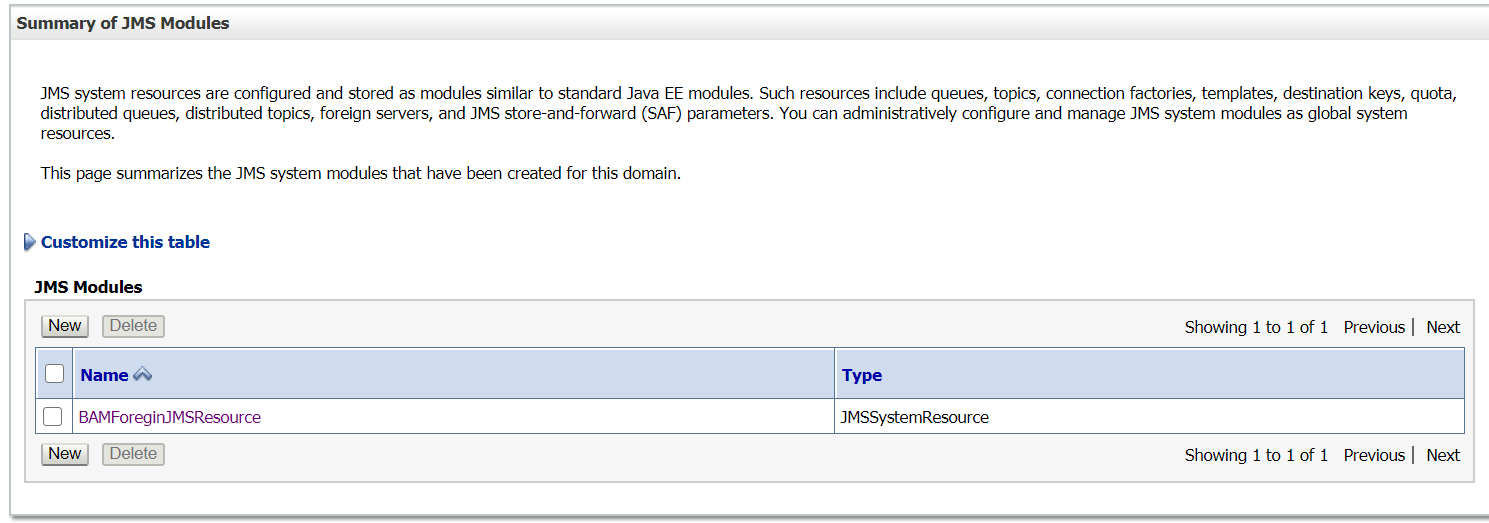
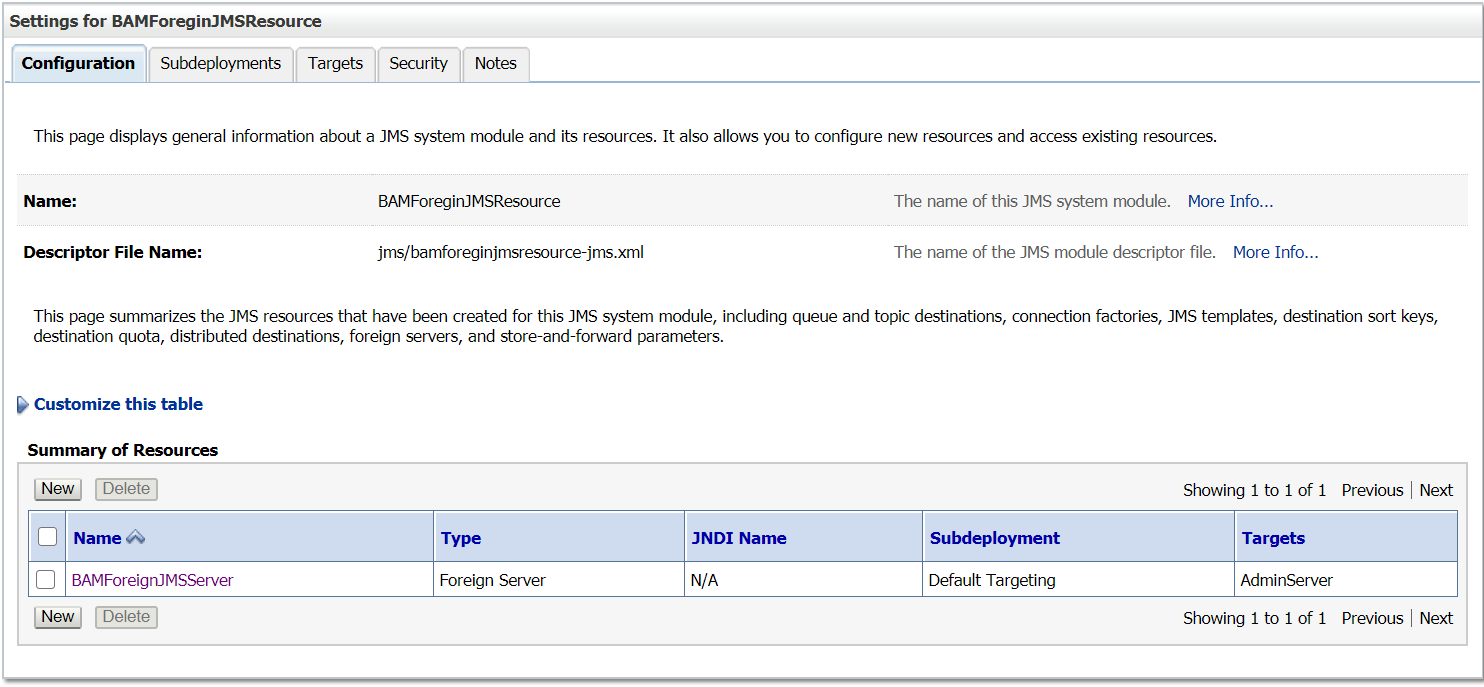
Creating Foreign JMS Server configurations through WLST script in Weblogic server

Creating Foreign JMS Server configurations through WLST script in Weblogic server


WebLogic JMS enables you to reference foreign (that is, external) JMS providers within a local WebLogic JNDI tree. Using the Foreign JMS Server node, you can quickly map a foreign JMS provider so that its connection factories and destinations appear in the WebLogic JNDI tree as a local JMS objects.

A Foreign JMS Server configuration can also be used to reference remote instances of WebLogic Server in another cluster or domain in the local WebLogic JNDI tree

Once the Foreign Provider is configured within Weblogic, for all practical purposes within the code — it can be called as if it was on local JNDI lookup. Weblogic will make the remote calls transparent to your code. This allows you to change your destination via configuration on the Weblogic console.

This tutorial explains the approach to configure Foreign JMS server through WLST script
WLST Script

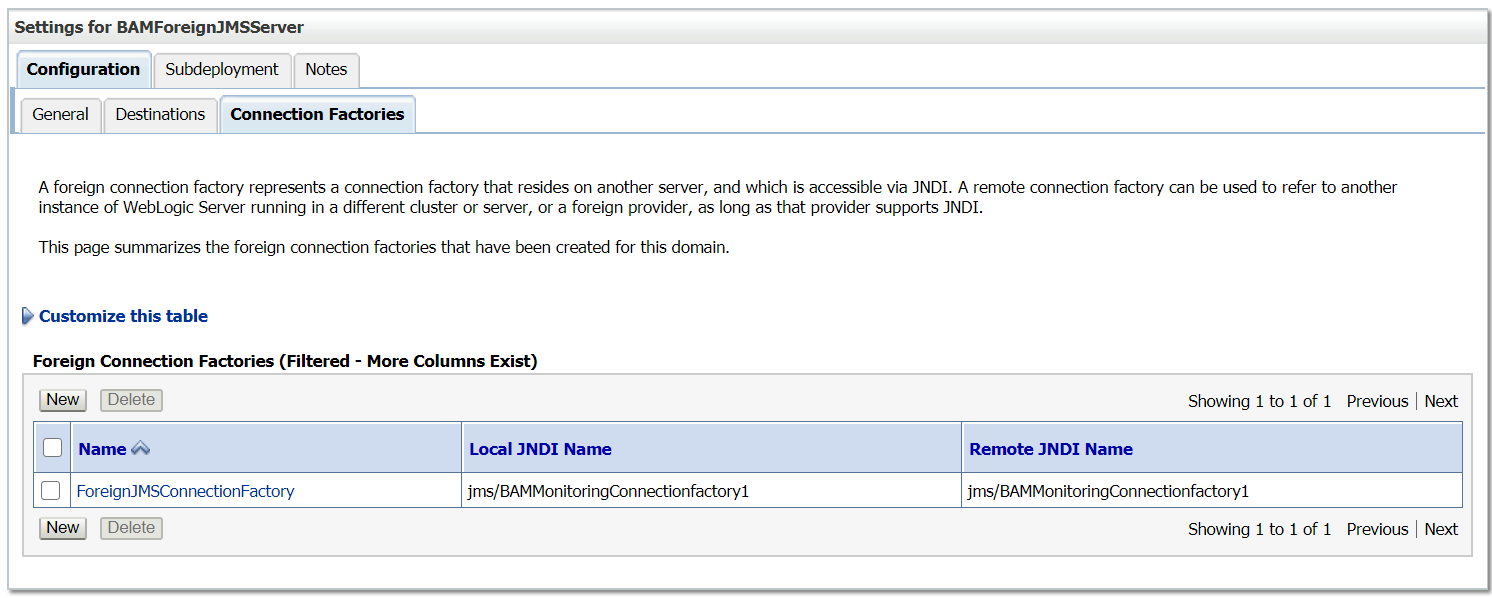
The below WLST script help us to create a Foreign JMS server in a local server for a JMS resources running in a remote weblogic server(in different domain) but the same can be used to configure Foreign Server with external providers .

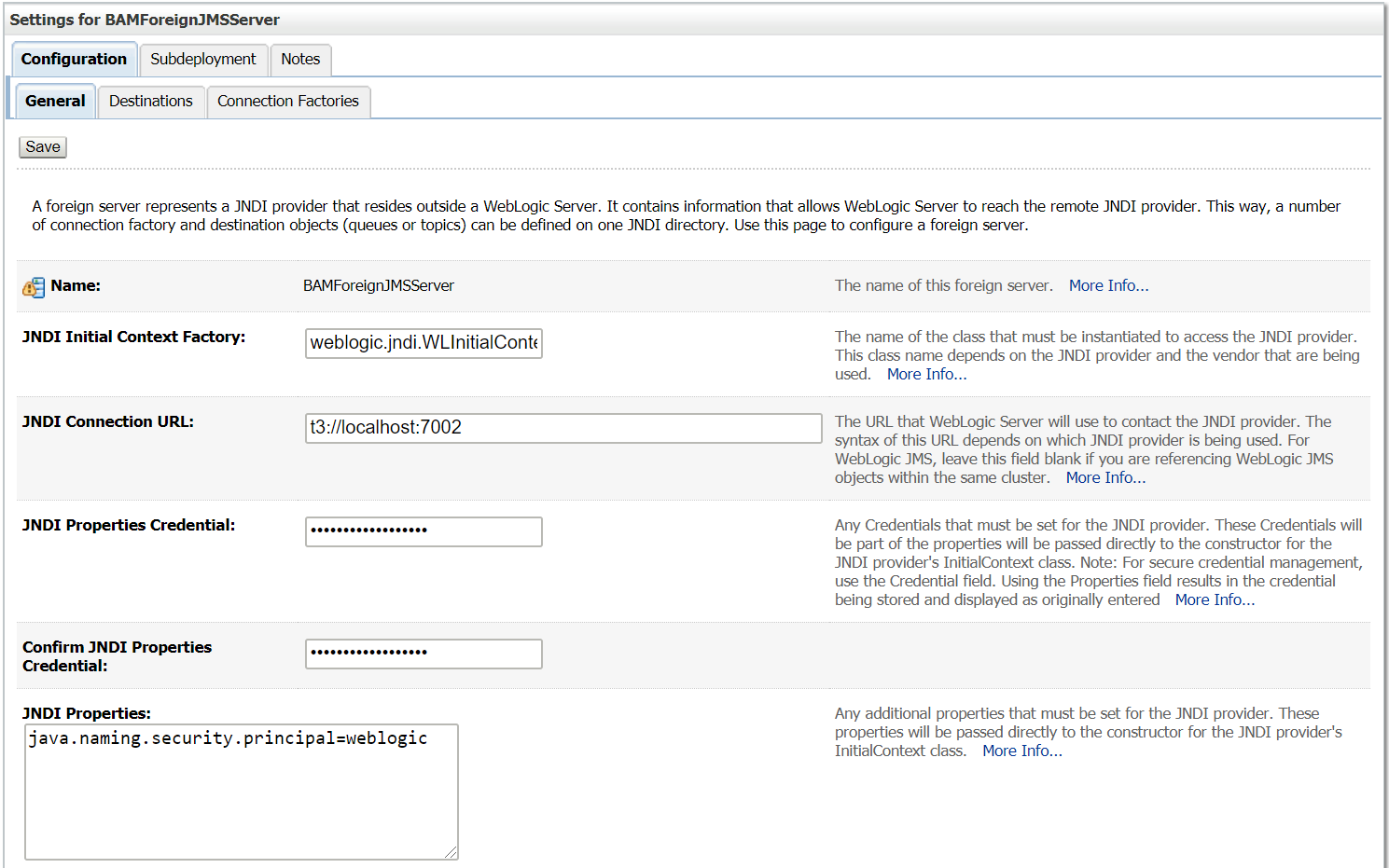
The JMS Server running on t3://localhost:7002 is configured as a Foreign JMS Server for t3://localhost:7002

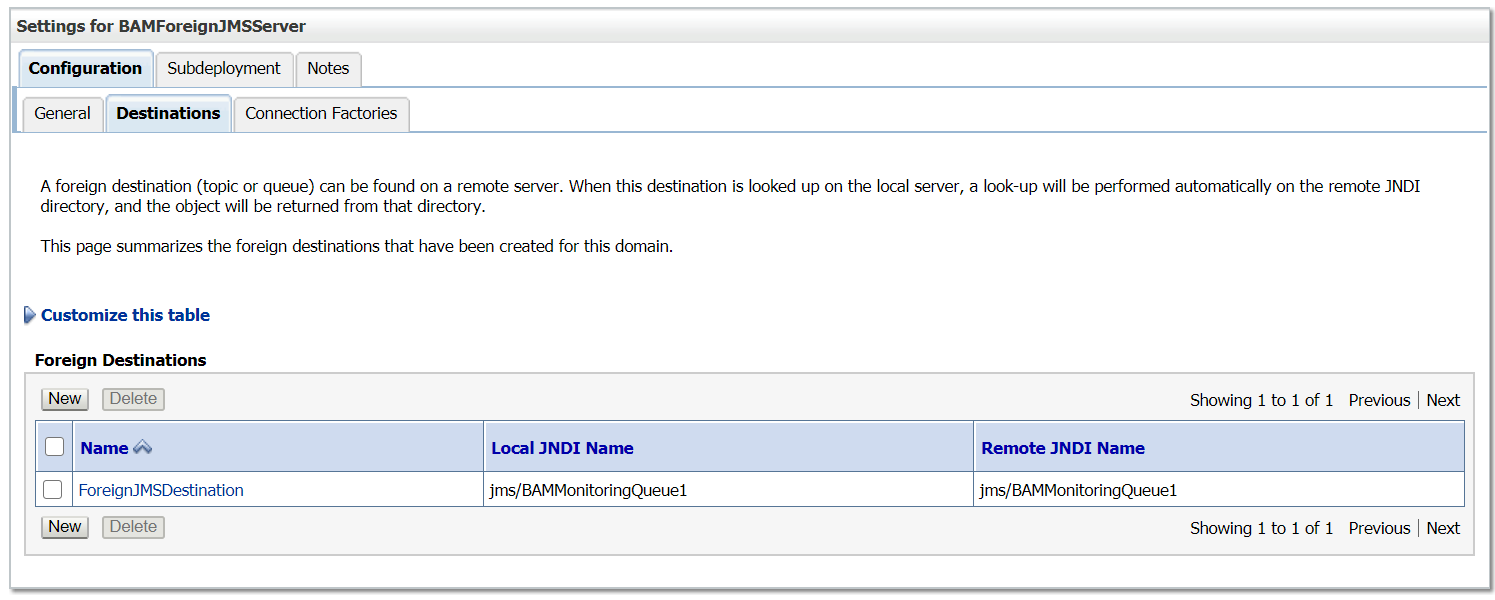
The JMS clients can use the local JNDI configured in the local server to send the messages to the remote JMS server.

The same script can be modified to create a Foreign JNDI Server for other JMS providers, some of the important remote server properties to be modified is remoteDestinationJNDI, remoteConnectionFactoryJNDI, remoteConnectionURL, initialJNDIContextFactory, remoteUserName and remotePassword

ConfigureForeignJMSServer.properties

adminUserName=weblogic
adminUserPassword=weblogic1
adminServerHost=localhost
adminServerPort=7001foreignJMSModuleName=BAMForeginJMSResource
foreignJMSServerName=BAMForeignJMSServer
localConnectionFactoryJNDI=jms/BAMMonitoringConnectionfactory1
remoteConnectionFactoryJNDI=jms/BAMMonitoringConnectionfactory1
localDestinationJNDI=jms/BAMMonitoringQueue1
remoteDestinationJNDI=jms/BAMMonitoringQueue1remoteConnectionURL=t3://localhost:7002
initialJNDIContextFactory= weblogic.jndi.WLInitialContextFactory
remoteUserName=weblogic
remotePassword=welcome1

ConfigureForeignJMSServer.py

from java.io import FileInputStreampropInputStream = FileInputStream("ConfigureForeignJMSServer.properties")
configProps = Properties()
configProps.load(propInputStream)connect(configProps.get("adminUserName"),configProps.get("adminUserPassword"), 't3://'+configProps.get("adminServerHost")+':'+configProps.get("adminServerPort"))foreignJMSModuleName=configProps.get("foreignJMSModuleName")
foreignJMSServerName=configProps.get("foreignJMSServerName")
localConnectionFactoryJNDI=configProps.get("localConnectionFactoryJNDI")
localDestinationJNDI=configProps.get("localDestinationJNDI")remoteDestinationJNDI=configProps.get("remoteDestinationJNDI")
remoteConnectionFactoryJNDI=configProps.get("remoteConnectionFactoryJNDI")remoteConnectionURL=configProps.get("remoteConnectionURL")
initialJNDIContextFactory=configProps.get("initialJNDIContextFactory")
remoteUserName=configProps.get("remoteUserName")
remotePassword=configProps.get("remotePassword")edit()
startEdit()cd('/')
cmo.createJMSSystemResource(foreignJMSModuleName)cd('/SystemResources/'+foreignJMSModuleName)
set('Targets',jarray.array([ObjectName('com.bea:Name=AdminServer,Type=Server')], ObjectName))cd('/JMSSystemResources/'+foreignJMSModuleName+'/JMSResource/'+foreignJMSModuleName)
cmo.createForeignServer(foreignJMSServerName)cd('/JMSSystemResources/'+foreignJMSModuleName+'/JMSResource/'+foreignJMSModuleName+'/ForeignServers/'+foreignJMSServerName)
cmo.setDefaultTargetingEnabled(true)cmo.setJNDIPropertiesCredential(remotePassword)cmo.setInitialContextFactory(initialJNDIContextFactory)
cmo.setConnectionURL(remoteConnectionURL)
cmo.createJNDIProperty('java.naming.security.principal')cd('/JMSSystemResources/'+foreignJMSModuleName+'/JMSResource/'+foreignJMSModuleName+'/ForeignServers/'+foreignJMSServerName+'/JNDIProperties/java.naming.security.principal')
cmo.setValue(remoteUserName)cd('/JMSSystemResources/'+foreignJMSModuleName+'/JMSResource/'+foreignJMSModuleName+'/ForeignServers/'+foreignJMSServerName)cmo.createForeignConnectionFactory('ForeignJMSConnectionFactory')cd('/JMSSystemResources/'+foreignJMSModuleName+'/JMSResource/'+foreignJMSModuleName+'/ForeignServers/'+foreignJMSServerName+'/ForeignConnectionFactories/ForeignJMSConnectionFactory')
cmo.setLocalJNDIName(localConnectionFactoryJNDI)
cmo.setRemoteJNDIName(remoteConnectionFactoryJNDI)cd('/JMSSystemResources/'+foreignJMSModuleName+'/JMSResource/'+foreignJMSModuleName+'/ForeignServers/'+foreignJMSServerName)
cmo.createForeignDestination('ForeignJMSDestination')cd('/JMSSystemResources/'+foreignJMSModuleName+'/JMSResource/'+foreignJMSModuleName+'/ForeignServers/'+foreignJMSServerName+'/ForeignDestinations/ForeignJMSDestination')
cmo.setLocalJNDIName(localDestinationJNDI)
cmo.setRemoteJNDIName(remoteDestinationJNDI)activate()

Script

https://github.com/techforum-repo/youttubedata/tree/master/scripts/wlst/ConfigureForeignJMSServer

Before executing the script, change the configurations as required.

Execute the script — <<Oracle_Home>>\oracle_common\common\bin\wlst.cmd ConfigureForeignJMSServer.py


Now the foreign JMS server is configured and ready for use — the messages can be send/receive through local JNDI’s , Weblogic server internally communicate to the remote server. The foreign JMS server configuration helps as to abstract the remote server details from clients, the remote server implementations can be changed any time without impacting the clients

Monday, March 11, 2013

Creating JMS Adapter connection factory through WLST script in weblogic server

Creating JMS Adapter connection factory through WLST script in weblogic server:

The below WLST script will help us to create the JMS adapter connection factories. Before Executing the script change the details accordingly.

configureJMSAdapterConnection.py

TargetServerName='AdminServer'

soaHome='oracle/Middleware/Oracle_SOA1'

appPathJms=soaHome+'/soa/connectors/JmsAdapter.rar'
appNameJms='JmsAdapter'
moduleOverrideNameJms=appNameJms+'.rar'
JMSJNDIName = 'eis/wls/BAMQueueConnection'
JMSConnectionfactory='jms/BAMMonitoringConnectionfactory'
#Sever Details

moduleDescriptorName='META-INF/weblogic-ra.xml'
planPathJms=soaHome+'/soa/connectors/Plan_JMS.xml'

def createJMSConnectionFactory():

        edit()
        startEdit()
        startApplication(appNameJms)
        myPlanJms=loadApplication(appPathJms, planPathJms)
        makeDeploymentPlanVariable(myPlanJms,'ConnectionInstance_eis/Jms_JNDIName_13102979357209', JMSJNDIName , '/weblogic-connector/outbound-resource-adapter/connection-definition-group/[connection-factory-interface="oracle.tip.adapter.jms.IJmsConnectionFactory"]/connection-instance/[jndi-name="'+JMSJNDIName+'"]/jndi-name',moduleOverrideNameJms)
        makeDeploymentPlanVariable(myPlanJms, 'ConfigProperty_eis/JMS_JNDIName_ConnectionFactory_Name_13102979357210', JMSConnectionfactory,'/weblogic-connector/outbound-resource-adapter/connection-definition-group/[connection-factory-interface="oracle.tip.adapter.jms.IJmsConnectionFactory"]/connection-instance/[jndi-name="'+JMSJNDIName+'"]/connection-properties/properties/property/[name="ConnectionFactoryLocation"]/value',moduleOverrideNameJms)

        myPlanJms.save();
        save();
        cd('/AppDeployments/JmsAdapter/Targets');
        updateApplication(appNameJms, planPathJms);
        activate(block='true');
     
  
def makeDeploymentPlanVariable(wlstPlan, name, value, xpath,overrideName, origin='planbased'):
    wlstPlan.destroyVariable(name)
    wlstPlan.destroyVariableAssignment(name, overrideName, moduleDescriptorName)
    variableAssignment = wlstPlan.createVariableAssignment(name, overrideName, moduleDescriptorName)
    variableAssignment.setXpath(xpath)
    variableAssignment.setOrigin(origin)
    wlstPlan.createVariable(name, value)
    print 'moduleDescriptorName=',moduleDescriptorName


def main():
       adminURL='t3://localhost:9001'
       adminUserName='weblogic'
       adminPassword='welcome1'
       connect(adminUserName, adminPassword, adminURL)
       createJMSConnectionFactory()
       disconnect()
main()

Login to the server, cd to the folder where the script is available and execute the script as shown below.

%MIDDLEWARE_HOME%\wlserver_10.3\common\bin\wlst.cmd configureJMSAdapterConnection.py

Monday, March 4, 2013

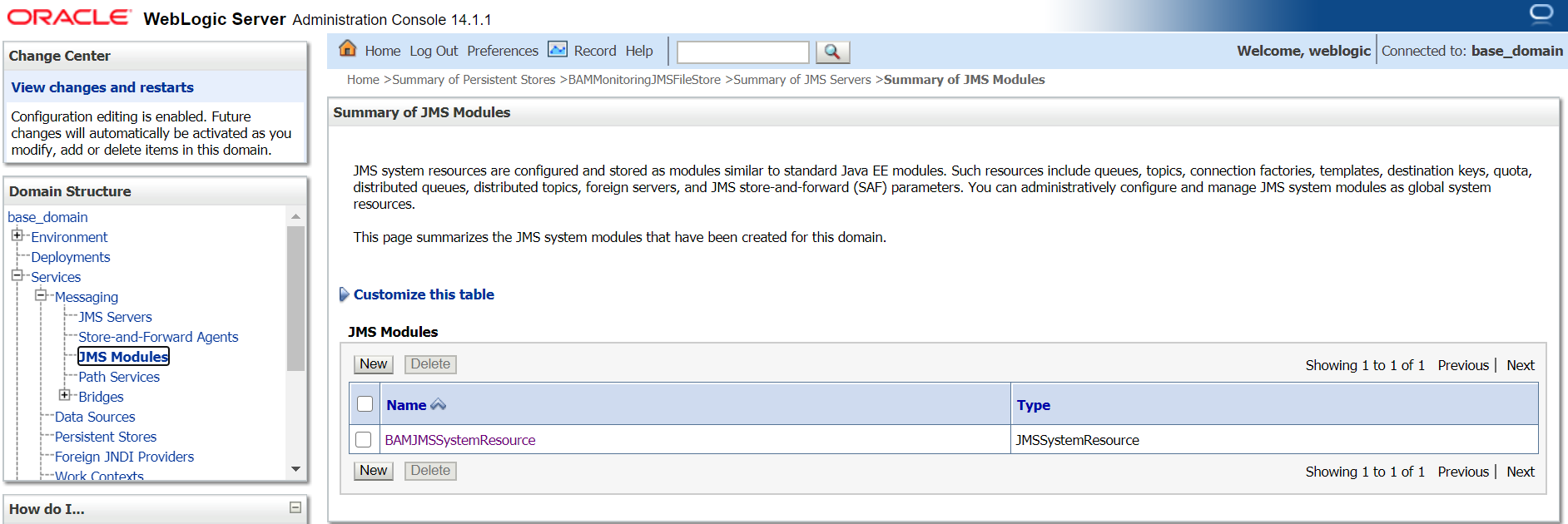
WLST script to configure JMS resources in weblogic server

WLST script to configure JMS resources in weblogic server

A JMS queue/Topic in Weblogic Server is associated with a number of additional resources:

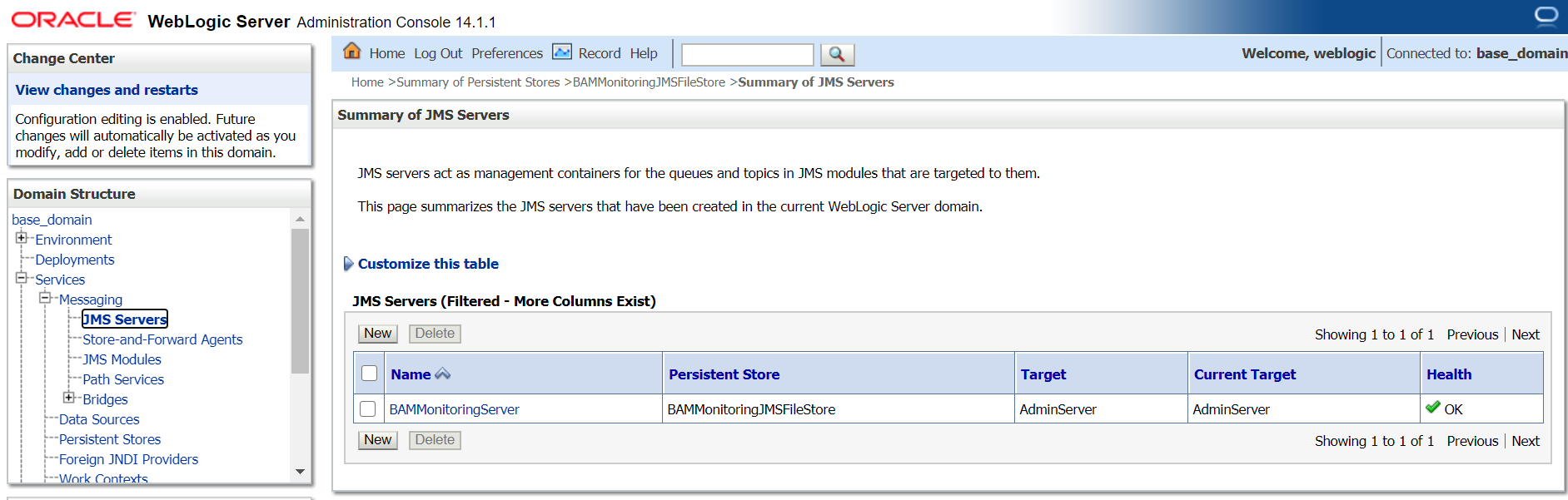
JMS Server


A JMS server acts as a management container for resources within JMS modules. Some of its responsibilities include the maintenance of persistence and state of messages and subscribers. A JMS server is required in order to create a JMS module.

JMS Module


A JMS module is a definition which contains JMS resources such as queues and topics. A JMS module is required in order to create a JMS queue.

Subdeployment


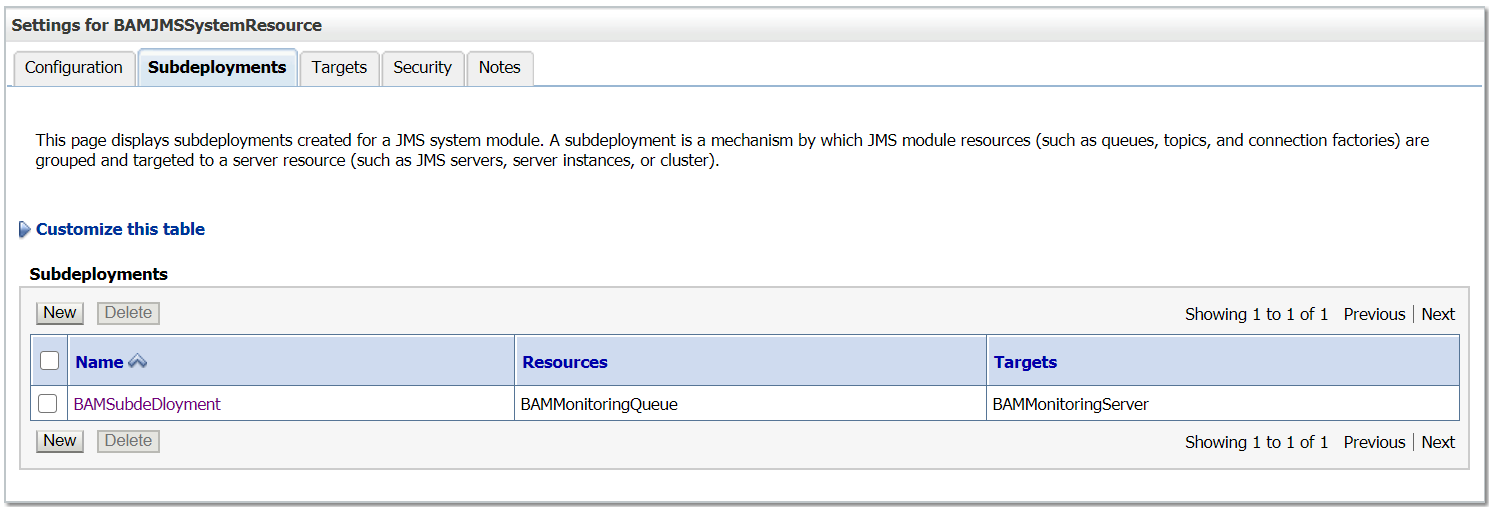
JMS modules are targeted to one or more WLS instances or a cluster. Resources within a JMS module, such as queues and topics are also targeted to a JMS server or WLS server instances. A subdeployment is a grouping of targets. It is also known as advanced targeting.

Connection Factory


A connection factory is a resource that enables JMS clients to create connections to JMS destinations.

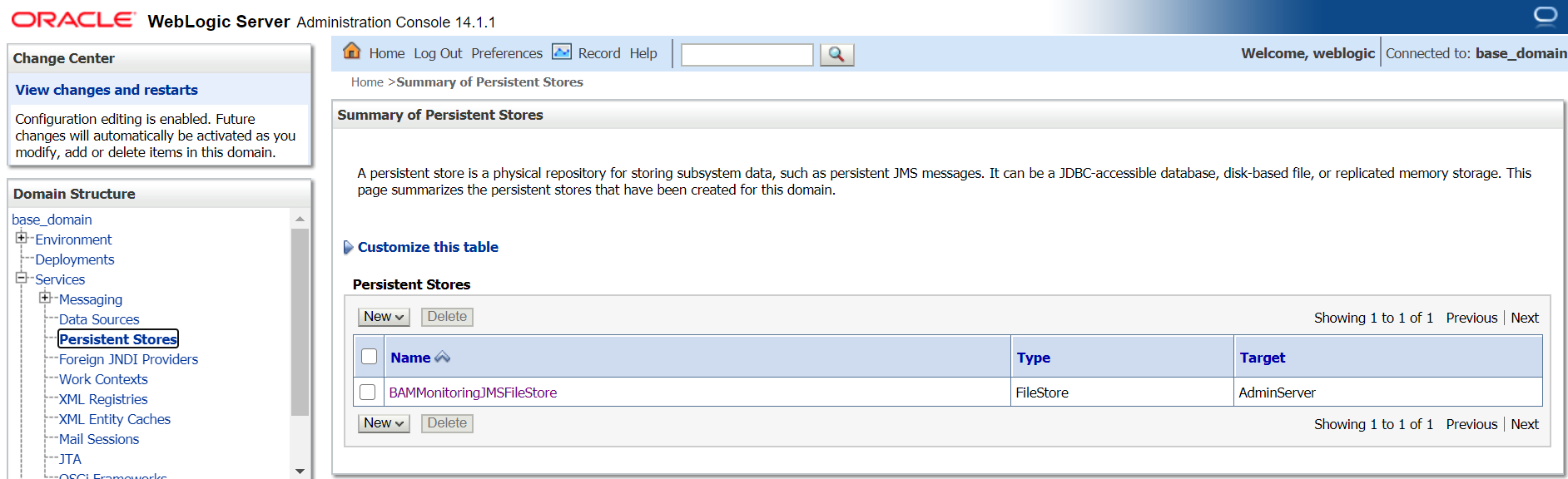
Persistent Store


It can be a UserDefined Persistent Store or a Default Persistent store. It is used for storing the Data (Messages).

JMS Queue/JMS Topic


JMS queue is a point-to-point destination type. A message is written to a specific queue or received from a specific queue.

JMS Topic follows Publish/Subscribe(Pub/Sub) model. Pub/sub messaging applications send and receive messages by subscribing to a topic

In this tutorial, we are going to configure JMS Queue with required additional resources through WLST script

WLST Script


The below script will help us to define the required JMS resources to enable the messaging queue

JMSConfiguration.properties
adminUserName=weblogic
adminUserPassword=weblogic1
adminServerHost=localhost
adminServerPort=7001
JMSConfiguration.py
from java.io import FileInputStream


Script

https://github.com/techforum-repo/youttubedata/tree/master/scripts/wlst/JMSConfiguration

Before executing the script, change the configurations as required.

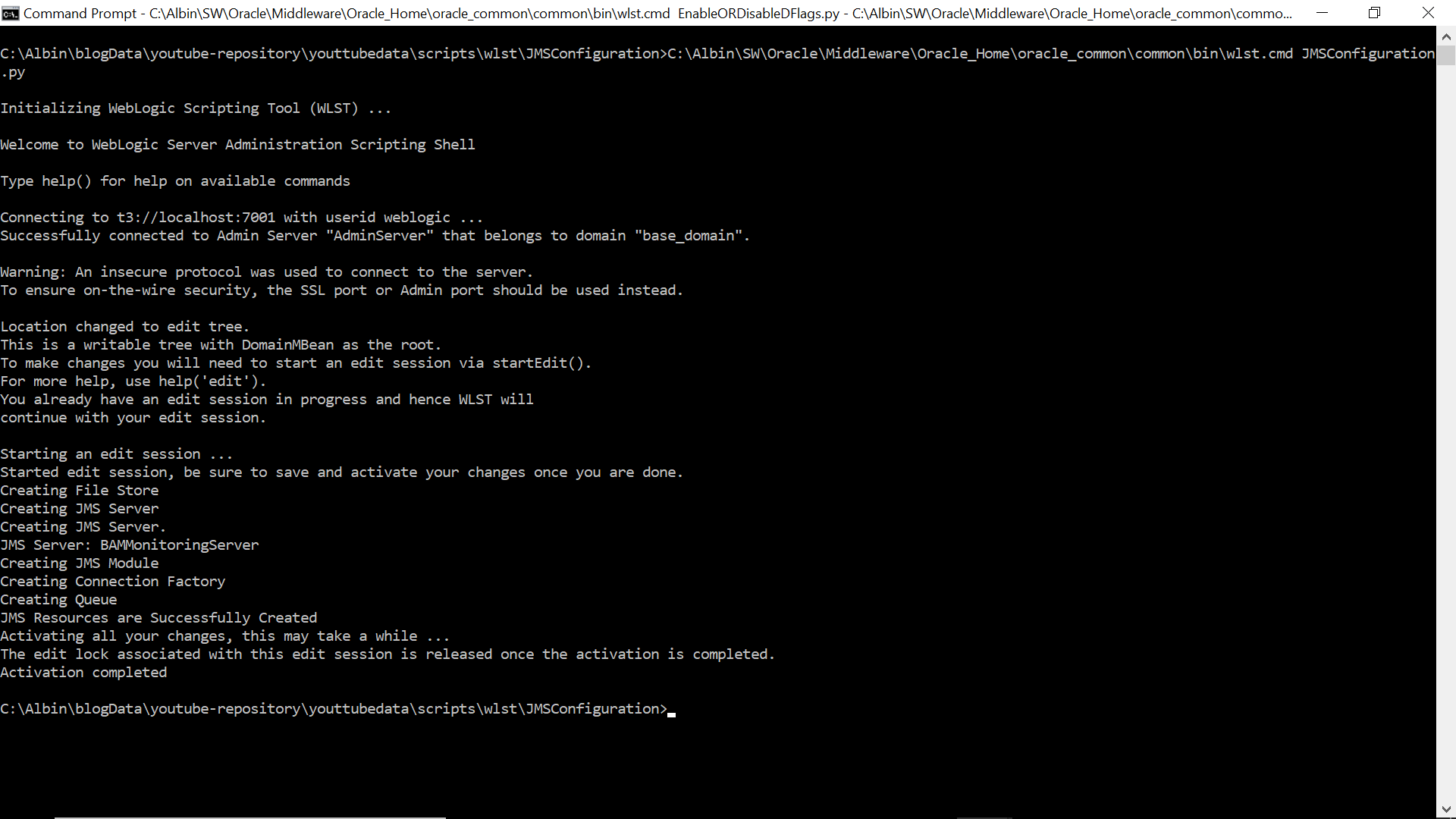
Execute the script — <<Oracle_Home>>\oracle_common\common\bin\wlst.cmd JMSConfiguration.py


Now the required JMS resources are created and the queue is ready for messaging

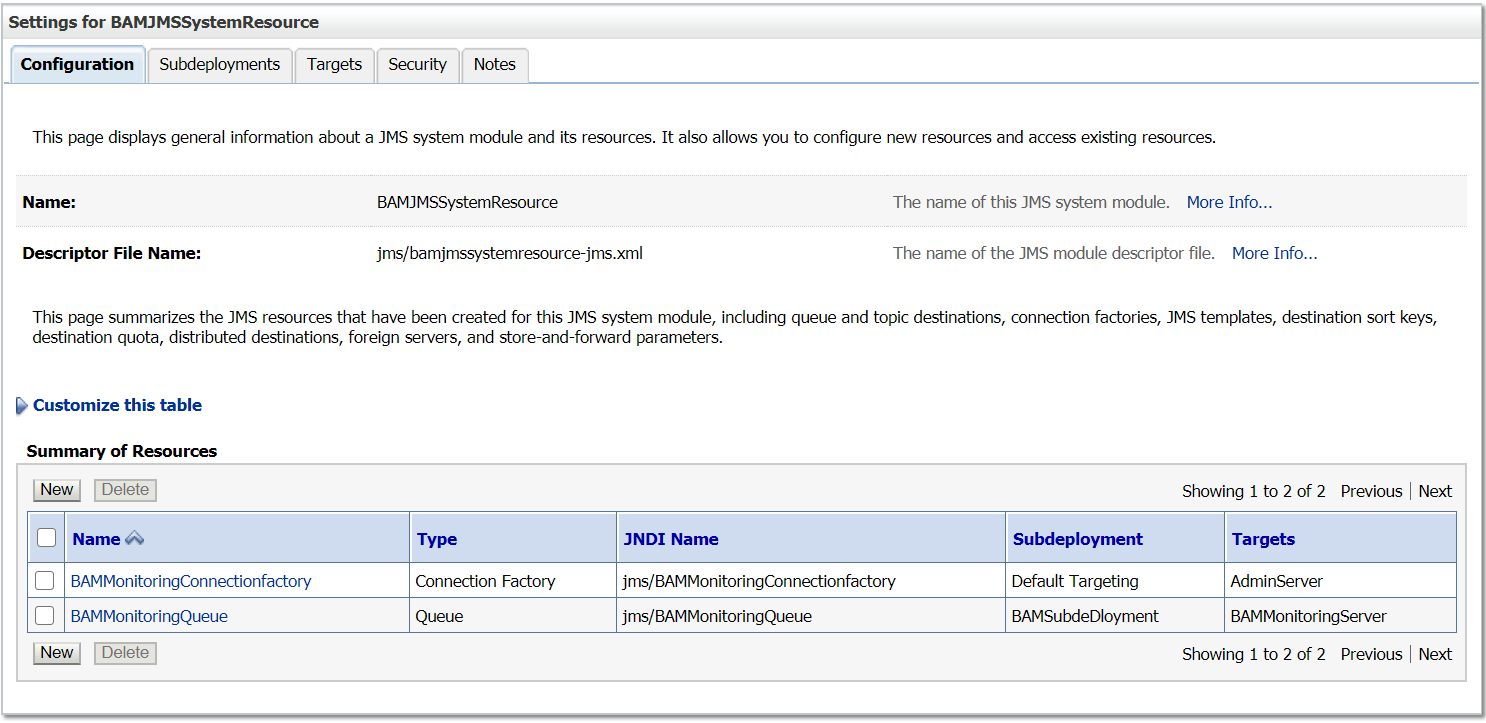
The queue can be accessed using the below JNDI names

jms/BAMMonitoringConnectionfactory
jms/BAMMonitoringQueue


Wednesday, February 20, 2013

Migrating the BAM objects across environments with the ANT script – Oracle BAM 11g

Migrating the BAM objects across environments with the ANT script – Oracle BAM 11g

This post explains how to use the ANT script to migrate the Oracle BAM objects across the environments.The script can be run remotely from the client machine or from the server machine.
  • Create a folder BAMConfig and create two sub folders BAMObjects and config inside the BAMConfig folder
  • Copy the BAMICommandConfig.xml from $ORACLE_HOME/bam/config folder of the server to the config folder created in the above step.
  • Add the default user name and the password to the BAMICommandConfig.xml file
           <ICommand_Default_User_Name>weblogic</ICommand_Default_User_Name>
           <ICommand_Default_Password>hiyEbs0vwXPQrKh8yE7z3f7JVNhmLLEe+cR3bansiPc=</ICommand_Default_Password>

         Also verify the ADCServerPort - the BAM Server http listening port and   ADCServerName -  BAM Server host name properties.

Content of the configuration file:

<?xml version="1.0" encoding="UTF-8"?><BAMICommand>
<ADCServerPort>9001</ADCServerPort>
<ADCServerName>BAM Server hostname</ADCServerName>
<ICommand_Default_User_Name>weblogic</ICommand_Default_User_Name>
<ICommand_Default_Password>hiyEbs0vwXPQrKh8yE7z3f7JVNhmLLEe+cR3bansiPc=</ICommand_Default_Password>
<Communication_Protocol>t3</Communication_Protocol>
<SensorFactory>oracle.bam.common.statistics.noop.SensorFactoryImpl</SensorFactory>
<GenericSatelliteChannelName>invm:topic/oracle.bam.messaging.systemobjectnotification</GenericSatelliteChannelName>
</BAMICommand>

Default password should be encrypted else you will be receiving “ICommandEngine.MissingCredentials” error.

To encrypt the password configure the BAMICommandConfig.xml file in the $ORACLE_HOME/bam/config folder with the plain text password and run any standard icommand from the server (e.g $ORACLE_HOME/bam/bin/icommand -cmd export -type dataobject -name SampleDO -file C:\temp\SampleDO.xml) that will encrypt the password.
  • Create Export_BAM_Objects.xml file with the BAM export commands and place the same in BAMConfig folder created in the above step, the contents of the file look like below
<OracleBAMCommands>
   <!--import dataobjects-->
    <Export name="/Albin/BAMWebservice" type="dataobject" file="$BAM_PROJ_HOME$/BAMWebservice.xml"/>
    <Export name="/SampleDO" type="dataobject" file="$BAM_PROJ_HOME$/SampleDO.xml"/>
</OracleBAMCommands>
Configure the required export commands (exporting different type of objects) into this file.
  • Create Import_BAM_Objects.xml file with the BAM import commands and place the same in BAMConfig folder created in the above step, the contents of the file look like below
<OracleBAMCommands>
   <!--import dataobjects-->
   <Import file="$BAM_PROJ_HOME$/BAMWebservice.xml"/>
</OracleBAMCommands>
Configure the required import commands into this file.
  • Create the BAMBuild.xml file with the following contents and place the same in the BAMConfig folder created in the above step.
<project name="BAMMigrationProject" basedir="." default="config">
   <!--import the property file-->
   <property environment="env"/>
   <property name="src.dir" value="."/>
   <property name="proj.home" value="${env.BAM_PROJ_HOME}"/>
   <property name="oracle.home" value="${env.ORACLE_HOME}"/>
   <property name="oracle.common.home" value="${env.ORACLE_COMMON_HOME}"/>
   <property name="bam.core.lib.dir" value="${env.ORACLE_HOME}/bam/modules/oracle.bam_11.1.1"/>
   <property name="bam.tp.lib.dir" value="${env.ORACLE_HOME}/bam/modules/oracle.bam.thirdparty_11.1.1"/>
   <property name="dms.lib.dir" value="${env.ORACLE_COMMON_HOME}/modules/oracle.dms_11.1.1"/>
   <!--BAM Classpath required by icommand application-->
   <path id="bamClasspath">
      <fileset file="${bam.core.lib.dir}/oracle-bam-icommand.jar"/>
      <fileset file="${bam.core.lib.dir}/oracle-bam-common.jar"/>
      <fileset file="${bam.core.lib.dir}/oracle-bam-adc-ejb.jar"/>
      <fileset file="${dms.lib.dir}/dms.jar"/>
      <fileset file="${bam.tp.lib.dir}/jgroups-core.jar"/>
      <fileset file="${bam.tp.lib.dir}/xstream-1.3.1.jar"/>
      <fileset file="${bam.tp.lib.dir}/commons-codec-1.3.jar"/>
      <fileset file="${oracle.home}/../wlserver_10.3/server/lib/weblogic.jar"/>
      <fileset file="${oracle.common.home}/modules/org.jaxen_1.1.1.jar"/>
   </path>
   <!--export BAM DOs through icommand-->
   <target name="export" description="Export BAM dataobjects and reports" depends="config">
    <delete dir="${basedir}/BAMObjects" includeemptydirs="true" includes="*/**"></delete>
      <java classname="oracle.bam.icommand.Application" fork="true" dir="${src.dir}" classpathref="bamClasspath">
         <sysproperty key="oracle.bam.debug" value="true"/>
         <arg value="-CmdFile"/>
         <arg value="${basedir}/Export_BAM_Objects.xml"/>
      </java>
   </target>
   <!--import BAM DOs through icommand-->
   <target name="import" description="Import BAM dataobjects and reports" depends="config">
      <java classname="oracle.bam.icommand.Application" fork="true" dir="${src.dir}" classpathref="bamClasspath">
         <sysproperty key="oracle.bam.debug" value="true"/>
         <arg value="-CmdFile"/>
         <arg value="${basedir}/Import_BAM_Objects.xml"/>
      </java>
   </target>
   <!--Modify bam icommand files-->
   <target name="config">
       <!--replace $project.home$ with the actual project directory inside the command file-->
      <replace file="Export_BAM_Objects.xml" token="$BAM_PROJ_HOME$" value="${basedir}/BAMObjects"/>
      <replace file="Import_BAM_Objects.xml" token="$BAM_PROJ_HOME$" value="${basedir}/BAMObjects"/>
   </target>
</project>
  • To run the scripts from the server copy the BAMConfig folder with all the contents to the server.Set the environment variables ORACLE_HOME and ORACLE_COMMON_HOME(e.gORACLE_HOME=/oracle/Middleware/Oracle_SOA1;export ORACLE_HOME;ORACLE_COMMON_HOME=oracle/Middleware/oracle_common;export ORACLE_COMMON_HOME) and also set the PATH to ANT(e.g export PATH=$PATH:$ORACLE_HOME/../modules/org.apache.ant_1.7.1/bin)
         Execute the ant scripts
          ant –f BAMBuild.xml export

        The objects will be exported based on the commands in the Export_BAM_Objects.xml as an xml file   to the BAMObjects folder

         ant –f BAMBuild.xml import

           The xml file contents will be imported to BAM based on the commands in the Import_BAM_Objects.xml
  • To run the script from the client machine the JDeveloper with the same version as the BAM server should be installed.Set the ORACLE_HOME (e.g C:\EnvSetup\MiddlewareBlog\jdeveloper) and ORACLE_COMMON_HOME(e.g C:\EnvSetup\MiddlewareBlog\oracle_common) environment variables and also set the PATH to ANT
        Copy the commons-codec-1.3.jar file from the server location   ${env.ORACLE_HOME}/bam/modules/oracle.bam.thirdparty_11.1.1 to the <JDEV_HOME>\ jdeveloper\bam\modules\oracle.bam.thirdparty_11.1.1

Run the ant script

Wednesday, February 13, 2013

Different integration approaches to send the event data to Oracle BAM 11g

Different integration approaches to send the event data to Oracle BAM 11g

Oracle BAM provides a framework for Creating dashboards that display real-time data based on the events.
There are multiple approaches to send the event data to Oracle BAM.This document explains some of the approaches to send the data toOracle BAM.

Different approaches to send event data to BAM

Wednesday, January 30, 2013

JAX-WS webservice client basic authentication

JAX-WS webservice client basic authentication:


Sometimes we may need to create a webservice client for a JAX-WS webservice that require the basic authentication.
This post will explain the how to pass the username/password when invoking the basic authentication enabled web services from the client.

Java client with basic authentication details:

import java.util.*;
import javax.xml.ws.*;
import weblogic.wsee.security.unt.ClientUNTCredentialProvider;
import weblogic.xml.crypto.wss.WSSecurityContext;
import weblogic.xml.crypto.wss.provider.CredentialProvider;

public class DataObjectOperationsByNameClient
{
  @WebServiceRef
  private static DataObjectOperationsByName_Service dataObjectOperationsByName_Service;
  public static void main(String [] args)
  {
    dataObjectOperationsByName_Service = new DataObjectOperationsByName_Service();
    DataObjectOperationsByName dataObjectOperationsByName = dataObjectOperationsByName_Service.getDataObjectOperationsByName();
    String input="<DataObject Name=\"BAMWebservice\" Path=\"/Albin\">\n" + "<Contents>\n" + "<Row>\n" + "<Column Name=\"Field1\" Value=\"Albin\" />\n" +
    "<Column Name=\"Field2\" Value=\"I.T\" />\n" +"<column Name=\"Field3\" Value=\"TR\" />\n" +"</Row>\n" + "</Contents>\n" + "</DataObject>\n";   
      String USERNAME = "weblogic";
      String PASSWORD = "welcome1";
        try {
            BindingProvider bindingProvider = (BindingProvider) dataObjectOperationsByName;
            Map<String,Object> rc = (Map<String,Object>)bindingProvider.getRequestContext();
            List<CredentialProvider> credProviders = new ArrayList<CredentialProvider>();
            credProviders.add(new ClientUNTCredentialProvider(
USERNAME .getBytes(),PASSWORD .getBytes()));
            rc.put(WSSecurityContext.CREDENTIAL_PROVIDER_LIST, credProviders);
            rc.put(BindingProvider.USERNAME_PROPERTY, USERNAME);
            rc.put(BindingProvider.PASSWORD_PROPERTY, PASSWORD);;

            dataObjectOperationsByName.insert(input);
        } catch (BAMWebServiceException e) { e.printStackTrace();      }
  }
}